LLM Providers
Agenistrator supports multiple LLM providers. You can configure one or more providers and choose which models to use.
Recommendation: We recommend Ollama Cloud or OpenRouter for most users. Both provide access to free models that are great for trying things out without any upfront cost. OpenRouter also provides access to models from all major providers with a single API key.
Supported Providers
Ollama Cloud
A hosted inference service for open-weight models, providing high-performance access to the latest open-source AI.
Getting an API Key:
- Go to ollama.com
- Sign up for a free account
- Navigate to Settings → Keys
- Create a new API key
Default Chat Model: gemma4:31b-cloud - High-performance open-weight model
Why Ollama Cloud?
- Generous free tier for open-source models
- Privacy-conscious infrastructure
- Fast, reliable inference for the latest open-weights
- No subscriptions required to start
OpenRouter (Recommended)
A unified API that aggregates models from OpenAI, Anthropic, Google, Meta, and many other providers.
Getting an API Key:
- Go to openrouter.ai
- Create an account or sign in
- Navigate to Keys
- Create a new key
Default Chat Model: Free Models Router - Automatically cycles through high-quality free models
Why OpenRouter?
- One API key for hundreds of models across providers
- Free models available for testing and light use
- Pay-per-use pricing with no subscriptions
- Automatic failover and uptime optimization
- Easy to switch between models without changing providers
Anthropic
Direct access to Anthropic’s Claude models.
Getting an API Key:
- Go to console.anthropic.com
- Create an account or sign in
- Navigate to Settings → API Keys
- Create a new API key
Default Chat Model: Claude Haiku 4.5 - Quick responses, cost-effective
Note: Anthropic does not provide embedding models. Use OpenRouter or OpenAI to get access to embedding models for semantic search.
OpenAI
Direct access to OpenAI’s GPT models.
Getting an API Key:
- Go to platform.openai.com
- Create an account or sign in
- Navigate to API Keys
- Click Create new secret key
- Copy the key (you won’t see it again)
Default Chat Model: gpt-4o-mini - Fast, affordable, capable
Default Embedding Model: text-embedding-3-small (for semantic search)
Choosing the Best Model
The default models are selected for accessibility and cost, not peak performance. For state-of-the-art results, check the LLM Arena Leaderboard to see current top performers.
Adding a Provider
- Go to Agenistrator → Settings
- In the Providers tab, click Add Provider
- Select the provider type
- Enter a descriptive name
- Paste your API key
- Click Save
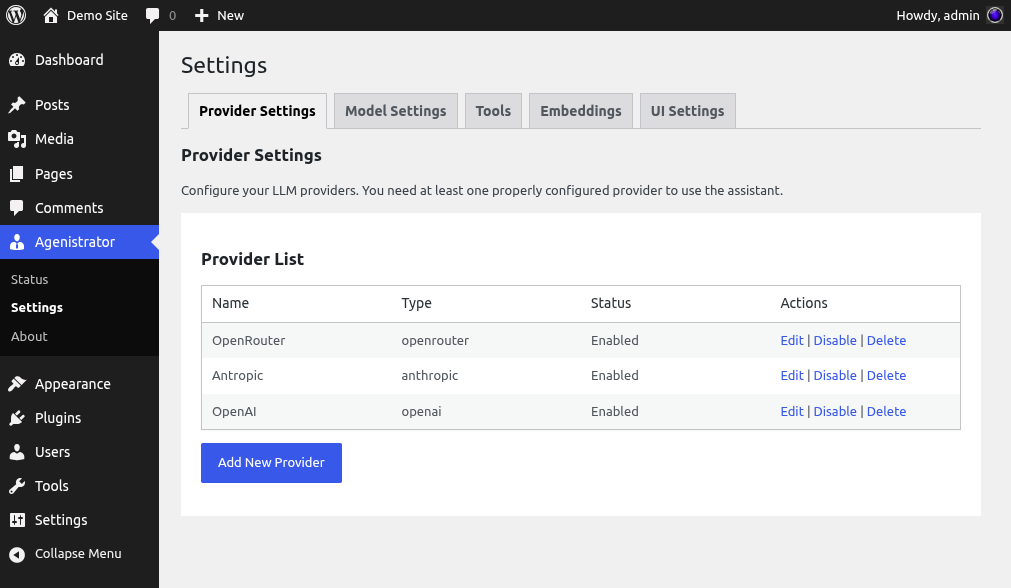
Provider settings with multiple LLM providers configured
Multiple Providers
You can add multiple providers. This may be useful for quickly switching between models for comparison. Models from all providers appear in the model selector under their provider name.
You can add multiple providers of the same type, which may be useful for load balancing requests across accounts.
Rate Limiting
Each provider has a Tokens Per Minute (TPM) setting:
- Set to
0for no limit - Set a value to throttle requests
- Helps stay within provider rate limits
- Frontend waits when limit is reached
Costs
All costs are charged by your LLM provider, not by Agenistrator:
- Agenistrator is free and open source
- You pay only for API usage to your provider
- Monitor costs in your provider’s dashboard
- Set usage limits in provider settings if available
- Free models are available for testing and light use